
Appearance
旧版输入系统
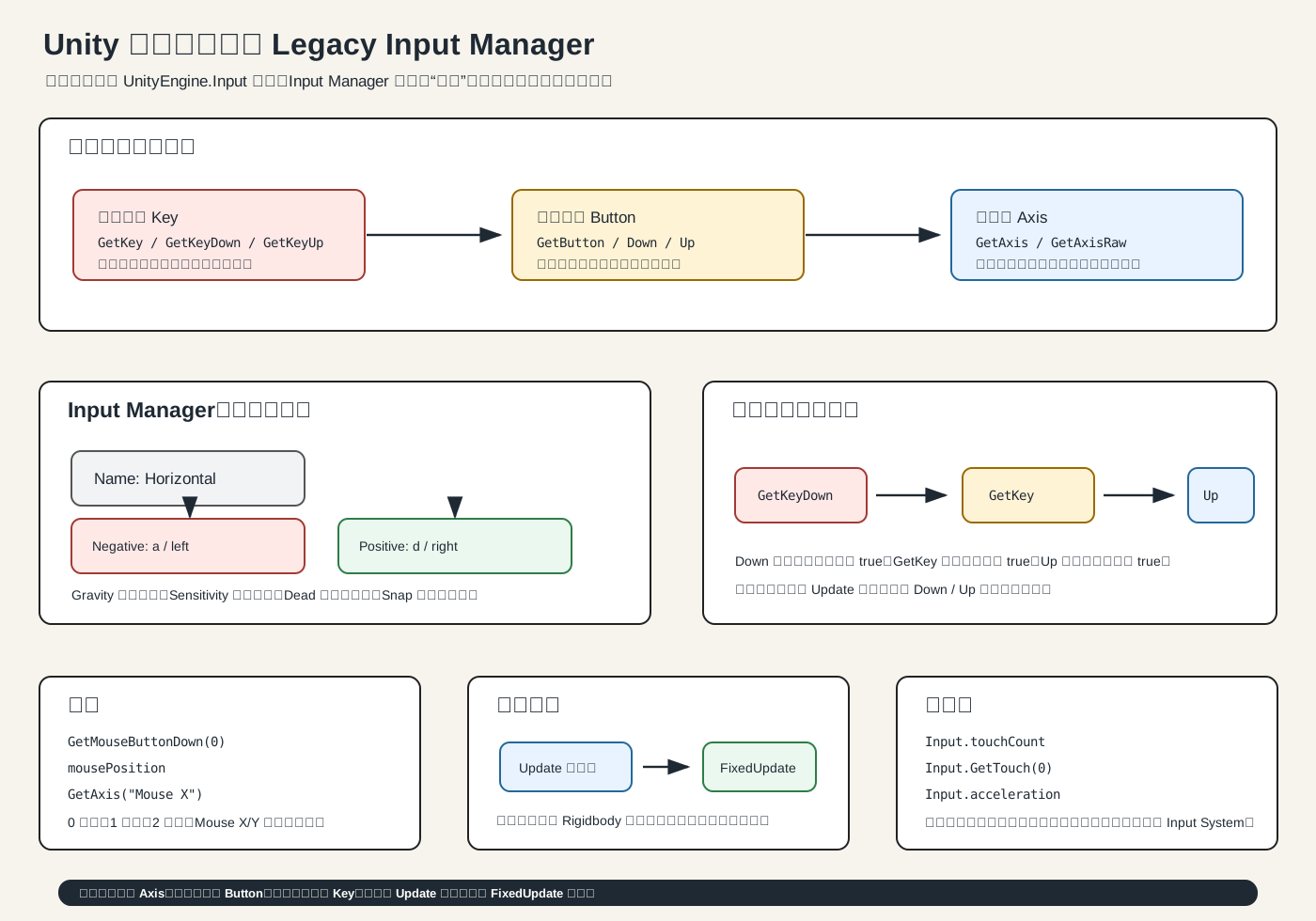
概念
旧版输入系统由两部分组成:
Input Manager:在编辑器里配置“虚拟按键 / 虚拟轴”
Input 类:在代码里读取输入官方已经把它标为 Legacy,新项目更推荐新 Input System;但老教程、老项目、快速练习里它仍然很常见。若旧代码报错,检查:
c
Edit > Project Settings > Player > Other Settings > Active Input Handling设为 Input Manager (Old) 或 Both。
一、三类核心 API
c
Input.GetKey(KeyCode.W);
Input.GetKeyDown(KeyCode.Space);
Input.GetKeyUp(KeyCode.Space);直接读物理按键。适合测试、调试快捷键、小 Demo。
c
Input.GetButton("Jump");
Input.GetButtonDown("Fire1");
Input.GetButtonUp("Fire1");读“虚拟按钮”。Jump、Fire1 这些名字来自 Input Manager。适合跳跃、攻击、互动、暂停。
c
Input.GetAxis("Horizontal");
Input.GetAxisRaw("Vertical");读“虚拟轴”。适合移动、转向、鼠标视角、手柄摇杆。
最重要口诀:
c
移动用 GetAxis / GetAxisRaw。
动作触发用 GetButtonDown。
临时硬编码才用 GetKeyDown。二、GetKey、GetKeyDown、GetKeyUp 区别
c
GetKeyDown:按下那一帧 true
GetKey:按住期间一直 true
GetKeyUp:松开那一帧 true例子:
c
void Update()
{
    if (Input.GetKeyDown(KeyCode.Space))
    {
        Debug.Log("刚按下空格");
    }

    if (Input.GetKey(KeyCode.Space))
    {
        Debug.Log("正在按住空格");
    }

    if (Input.GetKeyUp(KeyCode.Space))
    {
        Debug.Log("刚松开空格");
    }
}Down 和 Up 是“一帧事件”,所以输入通常放在 Update() 里读。
三、GetAxis 和 GetAxisRaw
c
float h = Input.GetAxis("Horizontal");
float v = Input.GetAxis("Vertical");默认常见含义:
c
Horizontal:A/D、左右方向键、手柄水平轴
Vertical:W/S、上下方向键、手柄垂直轴
Mouse X:鼠标水平移动量
Mouse Y:鼠标垂直移动量GetAxis 有平滑过渡:
c
0 -> 0.05 -> 0.1 -> ... -> 1GetAxisRaw 没有平滑:
c
键盘输入直接是 -1、0、1所以:
c
角色平滑移动:GetAxis
格斗/平台跳跃/像素精确移动:GetAxisRaw四、Input Manager 怎么配置
路径:
c
Edit > Project Settings > Input Manager展开 Axes,每一项都是一个虚拟输入。
常见字段:
c
Name:代码里使用的名字,比如 Horizontal
Negative Button:负方向,比如 a、left
Positive Button:正方向,比如 d、right
Alt Negative Button:备用负方向,比如 left
Alt Positive Button:备用正方向,比如 right
Gravity:松开后回到 0 的速度
Sensitivity:按下后接近 1 或 -1 的速度
Dead:死区,常用于摇杆
Snap:反方向按下时是否先归零
Invert:反转输入值
Type:Key or Mouse Button / Mouse Movement / Joystick Axis
Axis:手柄或鼠标轴编号
Joy Num:指定哪个手柄举例,Horizontal 可以配置成:
c
Negative Button: a
Positive Button: d
Alt Negative Button: left
Alt Positive Button: right代码里只写:
c
float h = Input.GetAxis("Horizontal");不用关心玩家按的是 A/D 还是方向键。
五、完整案例:2D 角色移动 + 跳跃
c
using UnityEngine;

public class PlayerMove2D : MonoBehaviour
{
    public float moveSpeed = 6f;
    public float jumpForce = 8f;

    private Rigidbody2D rb;
    private float moveX;
    private bool jumpPressed;

    void Awake()
    {
        rb = GetComponent<Rigidbody2D>();
    }

    void Update()
    {
        moveX = Input.GetAxisRaw("Horizontal");

        if (Input.GetButtonDown("Jump"))
        {
            jumpPressed = true;
        }
    }

    void FixedUpdate()
    {
        rb.linearVelocity = new Vector2(moveX * moveSpeed, rb.linearVelocity.y);

        if (jumpPressed)
        {
            rb.AddForce(Vector2.up * jumpForce, ForceMode2D.Impulse);
            jumpPressed = false;
        }
    }
}为什么这么写?
c
Update:读输入,避免漏掉 GetButtonDown
FixedUpdate:处理 Rigidbody,符合物理更新节奏这是旧输入系统里很重要的习惯。
六、鼠标输入
c
void Update()
{
    if (Input.GetMouseButtonDown(0))
    {
        Debug.Log("鼠标左键");
    }

    if (Input.GetMouseButtonDown(1))
    {
        Debug.Log("鼠标右键");
    }

    if (Input.GetMouseButtonDown(2))
    {
        Debug.Log("鼠标中键");
    }

    Vector3 mousePos = Input.mousePosition;
}鼠标编号:
c
0:左键
1:右键
2:中键鼠标视角常用:
c
float mouseX = Input.GetAxis("Mouse X");
float mouseY = Input.GetAxis("Mouse Y");注意:Mouse X/Y 不是 -1 到 1,而是鼠标移动增量。
七、开火 / 生成子弹
c
using UnityEngine;

public class Shooter : MonoBehaviour
{
    public GameObject bulletPrefab;
    public Transform firePoint;

    void Update()
    {
        if (Input.GetButtonDown("Fire1"))
        {
            Instantiate(bulletPrefab, firePoint.position, firePoint.rotation);
        }
    }
}Fire1 可以在 Input Manager 里绑定到:
c
鼠标左键
Ctrl
手柄按钮这样代码不用改。
八、最常见错误
c
把 GetButtonDown 写在 FixedUpdate,导致偶尔按键没反应
移动用 GetButtonDown,结果角色只动一下
忘记乘 Time.deltaTime,导致帧率影响移动
Input Manager 里的名字拼错,比如 "horizontal" 和 "Horizontal"
Active Input Handling 只开了新 Input System,旧 Input 代码报错
用 GetKey 写死键位,后面无法通过 Input Manager 改键你先掌握这 8 个就够了
c
Input.GetKey(...)
Input.GetKeyDown(...)
Input.GetKeyUp(...)

Input.GetButton(...)
Input.GetButtonDown(...)
Input.GetButtonUp(...)

Input.GetAxis(...)
Input.GetAxisRaw(...)旧版输入系统的灵魂是:
代码不直接问“玩家按了哪个键”,而是问“Horizontal、Jump、Fire1 这些虚拟输入现在是什么状态”。参考:Unity 官方 Legacy Input、Input Manager、Input API、GetAxis、GetAxisRaw、GetKeyDown、GetButtonDown、GetMouseButtonDown。sors](https://docs.unity3d.com/Packages/com.unity.inputsystem@1.0/manual/Processors.html)。